The Manage Classes page allows authorized users to add, delete, and edit classes within the site. Additional features include copying classes, updating class data, adding learners, and assigning instructors to manage classes. All class-related features can accessed on the Class Details page.
A class is created from a course built in Course Builder. Once a course is published in Course Builder, it becomes available for class creation.
Class List
The Class List displays all classes within a group. When you change the group, the list will refresh to show classes from the newly selected group.
You can use filters to refine the list of classes. Users can filter by Course. To apply filters, click the +Advanced Search button.
The above image shows the class list for two different groups
On the Class List page, click + Add to navigate to the page where you can create a new class.
A. Select Course – Choose a published course or process flow? (workflow?) from Course Builder. Only published courses or process flows(work flows) will appear.
B. Class Name – The class name is different from the course name, as multiple classes can be based on the same course. For example, you can “First Year – Cohort 1” and reuse the same course for multiple other cohorts as well.
C. Class Type – Select from 2 training delivery modalities:
-
- Online - The course is delivered entirely online and is typically self-paced.
- Live/Combo – The training includes a mix of online content and in-person or webinar-based sessions.
D. Enrollment Start and End Dates – Defines the time period during which the class will be open for enrollment. After this period, new learners will no longer be able to join, but those already enrolled can continue taking the class.
E. Seats – Set a limit on the number of participants who can enroll in a class. This is especially useful in Live/ Combo classes to ensure a manageable class size.
F. Advanced Class Options:
Publish to Store – Publish a class to the store front.
Coupon Code – This is automatically set by the system. Can be used with any pages that interact with coupon code, like 'Redeem Code' or some sign up pages.
Friendly Coupon Name – This is an alternate for the coupon code shown above but can be set manually. Same usage as above.
Expiration Limit (Days) – The period of time in which learners have to complete a class before it is removed from their classes. The default duration is 365 days.
Recently Viewed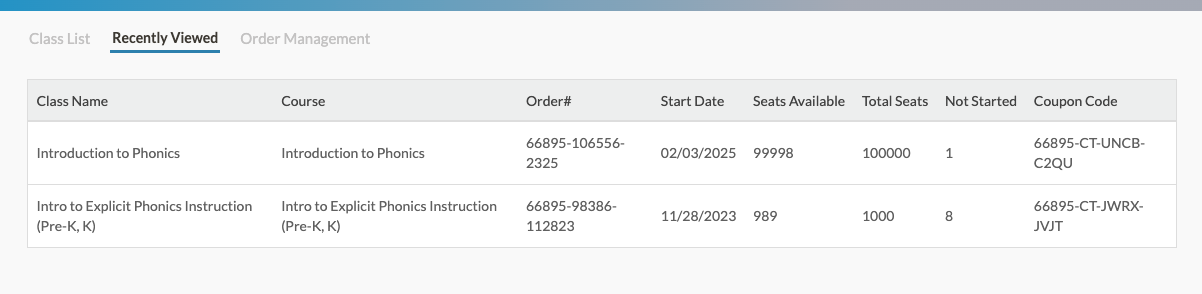
The Recently Viewed tab shows 10 of the most recently viewed classes in order. Clicking on a class name will redirect to the Class Details page. Each user has their own Recently Viewed list.
Order Management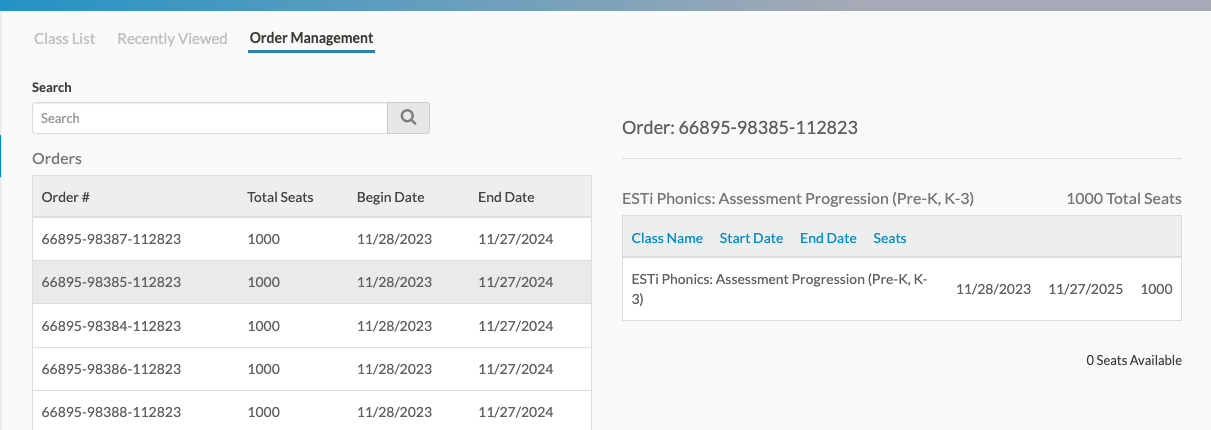
The Order Management tab displays classes purchased from the store, including the class start and end dates and the total number of seats purchased.
- Clicking the Order # will display details about the order, including the class name.
- Additionally, clicking the Class Name redirects to the Class Details page with all of the details of the class that was purchased.