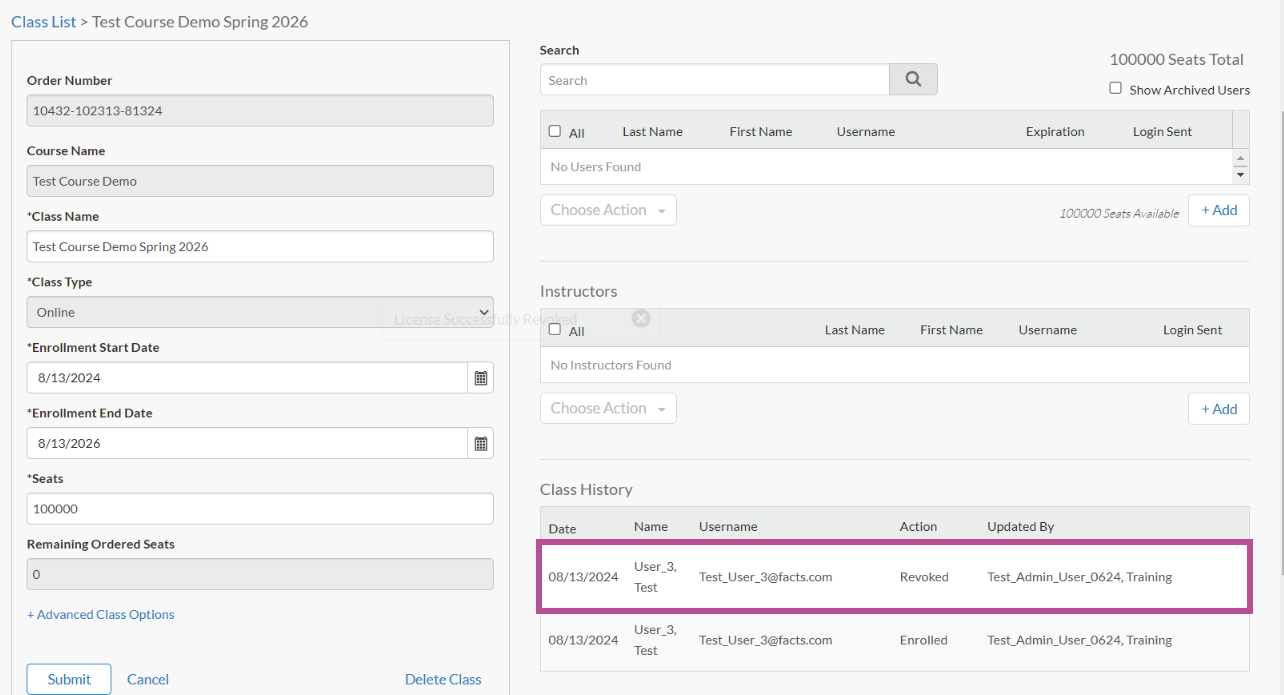
This tutorial demonstrates how to revoke a user from a Class.
1. This video demonstrates how to revoke a user from a Class.
The first step is to open your LMS Site and click Admin

2. Click Classes

3. Click Edit Group Pencil to select group

4. Click Select Group

5. Click Class

6. Click and Select User to revoke

7. Click highlighted Choose Action dropdown

8. Click Revoke

9. User is now Revoked

10. That's it. You're done.

Here's an interactive tutorial
** Best experienced in Full Screen (click the icon in the top right corner before you begin) **
https://www.iorad.com/player/2419406/How-to-Revoke-a-User-from-a-Class?iframeHash=trysteps-1
1. This video demonstrates how to revoke a user from a Class.
The first step is to open your LMS Site and click Admin
2. Click Classes
3. Click Edit Group Pencil to select group
4. Click Select Group
5. Click Class
6. Click and Select User to revoke
7. Click highlighted Choose Action dropdown
8. Click Revoke
9. User is now Revoked
10. That's it. You're done.
Here's an interactive tutorial
** Best experienced in Full Screen (click the icon in the top right corner before you begin) **
https://www.iorad.com/player/2419406/How-to-Revoke-a-User-from-a-Class?iframeHash=trysteps-1
1. This tutorial demonstrates how to revoke a user from a class.
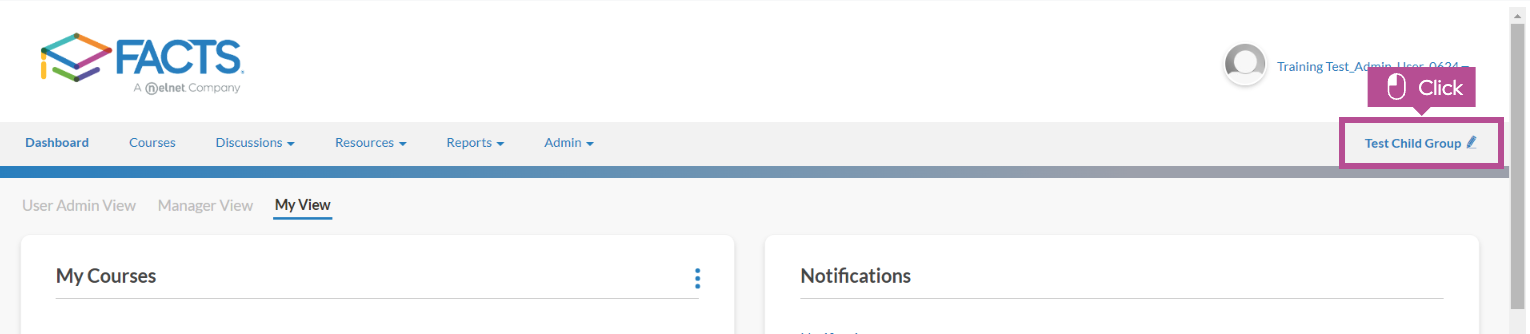
Open your LMS Site and click the pencil icon in the right hand corner of the top navigation.

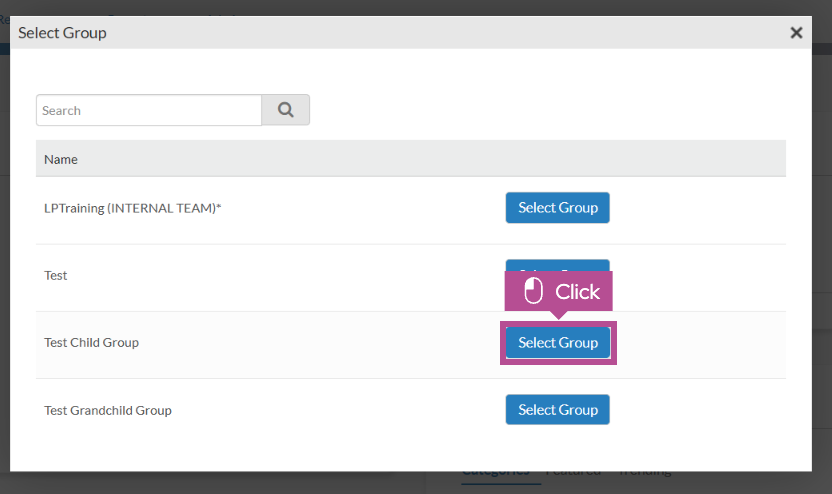
2. Click Select Group for the group that contains the class you would like to revoke the user(s) from.

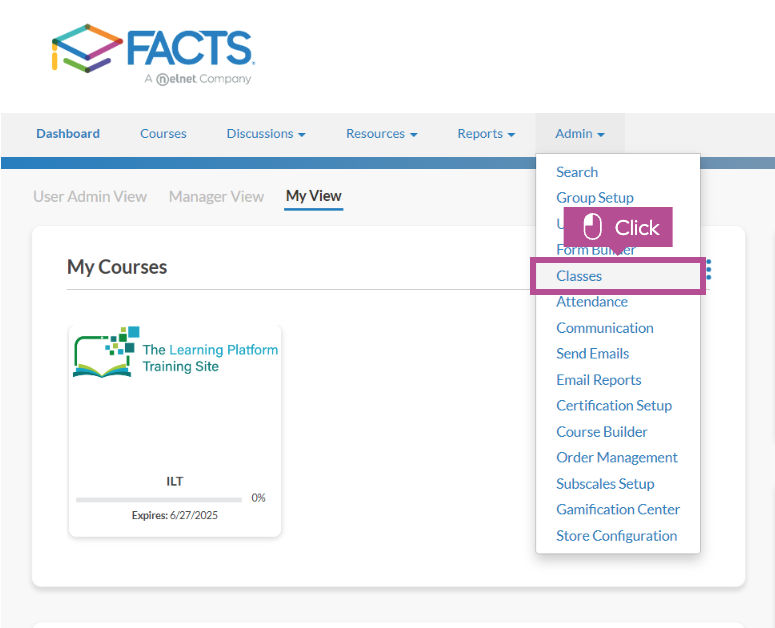
3. Now that you are in the correct group. Click Admin > Classes.

4. From the Class List page click the Class you would like to revoke user(s) from.

5. Click the checkbox to select the user you want to revoke.

6. Once you have selected the checkboxes for the users you wish to revoke, click the Choose Action dropdown, then click Revoke.

7. In the Class History module, you will see that the user is now revoked.
Important: If you do not see that the user has been revoked, please contact our FACTS support team for further assistance.

8. That's it. You're done.

Here's an interactive tutorial
** Best experienced in Full Screen (click the icon in the top right corner before you begin) **
https://www.iorad.com/player/2543295/How-to-Revoke-a-User-from-a-Class---?iframeHash=trysteps-1
Click on the highlighted boxes or use the arrows to navigate.
Written Guide:
1. Open your LMS Site and click the pencil icon in the right hand corner of the top navigation.
2. Click Select Group for the group that contains the class you would like to revoke the user(s) from.
3. Now that you are in the correct group. Click Admin > Classes.
4. From the Class List page click the Class you would like to revoke user(s) from.
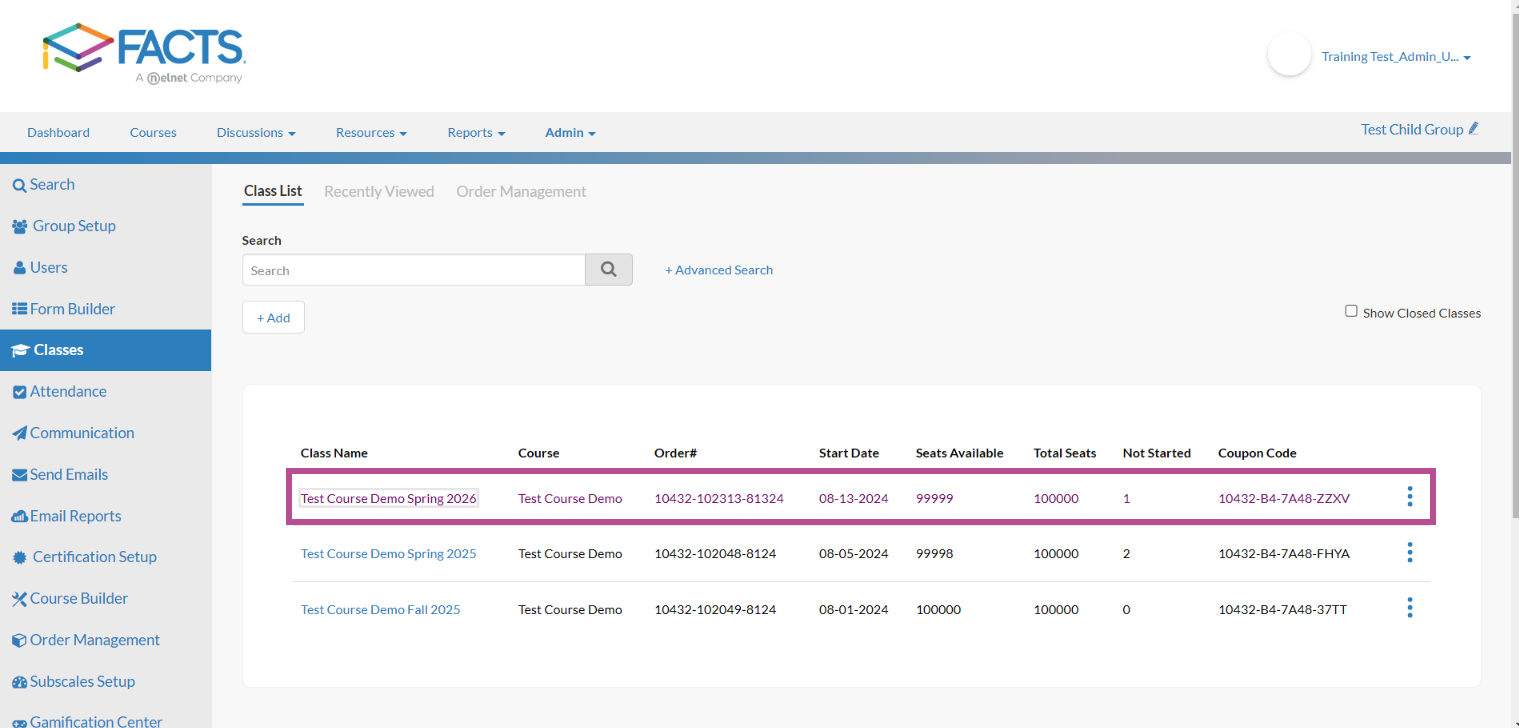
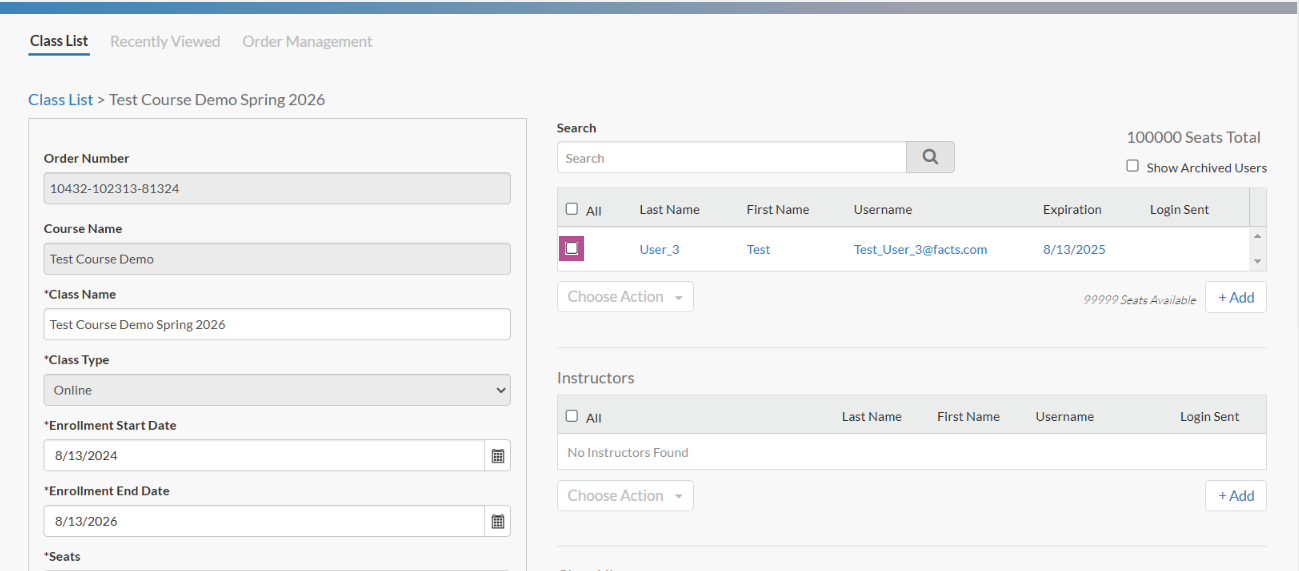
5. Click the checkbox to select the user you want to revoke.
6. Once you have selected the checkboxes for the users you wish to revoke, click the Choose Action dropdown, then click Revoke.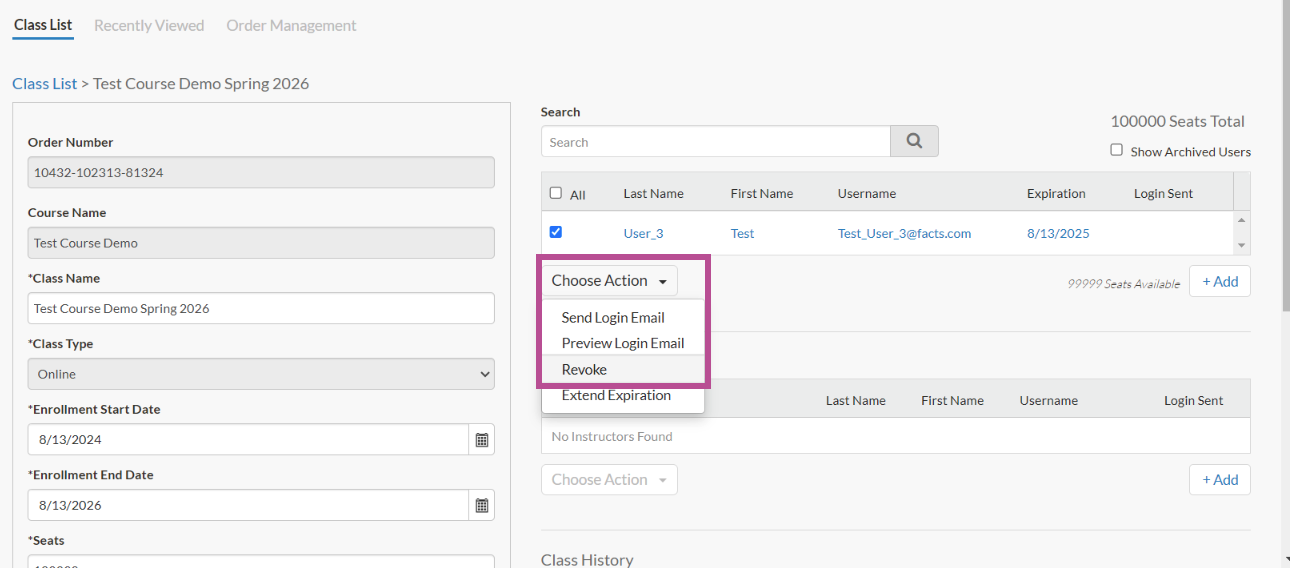
7. In the Class History module, you will see that the user is now revoked.
Important: If you do not see that the user has been revoked, please contact our FACTS support team for further assistance.