This tutorial explains how to add user to a Group.
1. This video explains how to Add a User to a Group.
The first step is to open your LMS Site and select and click on Group

2. Click the group where you would like to add the User(s) Select Group

3. Click + Add

4. Click * First Name

5. Type * First Name

6. Click * Last Name

7. Type * Last Name

8. Click * Username

9. Type * Username

10. Click Submit

11. Scroll down and that's it. You're done.

Here's an interactive tutorial
** Best experienced in Full Screen (click the icon in the top right corner before you begin) **
https://www.iorad.com/player/2409750/How-to-Add-a-User-to-a-Group?iframeHash=trysteps-1
1. This tutorial explains how to add a user to a Group.
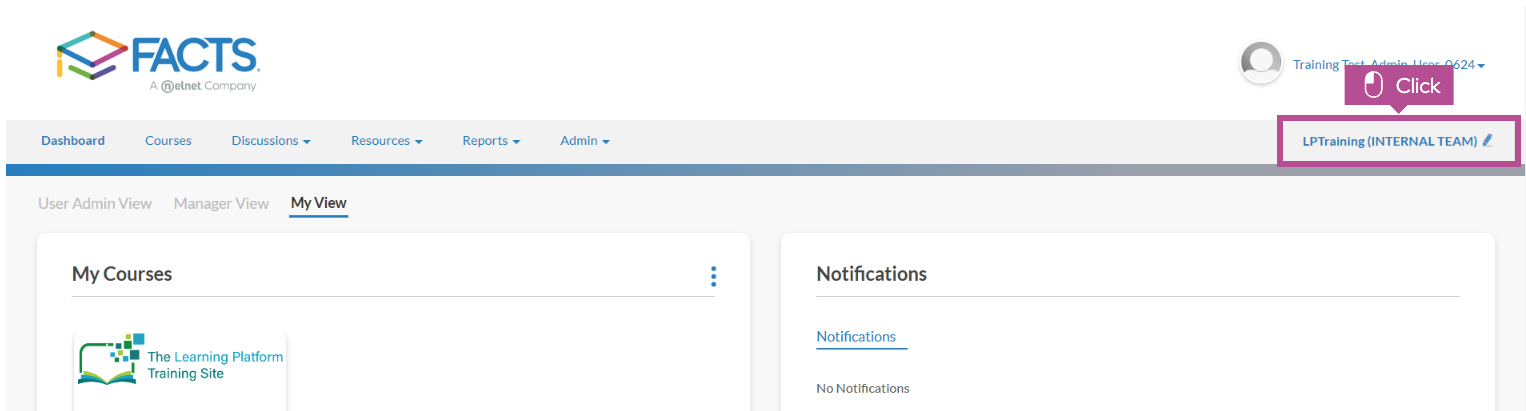
Open your LMS Site and click the pencil icon in the right hand corner of the top navigation.

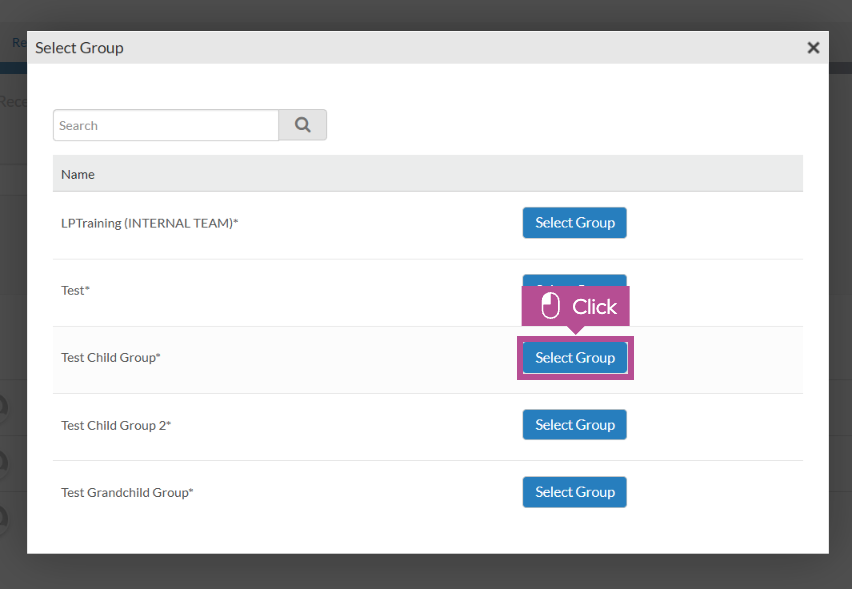
2. Click Select Group for the group you would like to add the user(s) to.

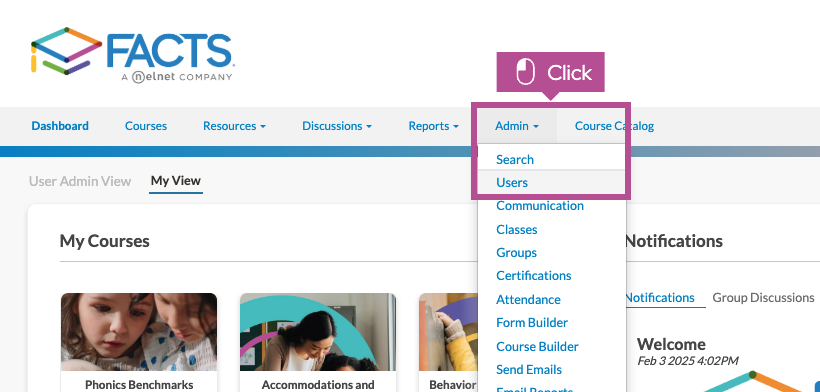
3. Click Admin > Users

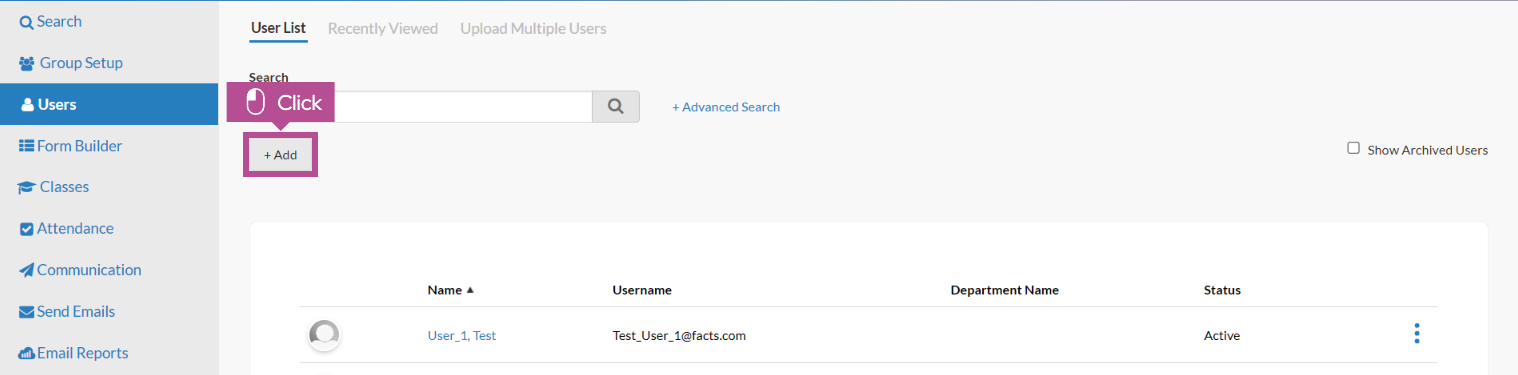
4. From the User List Page, click + Add

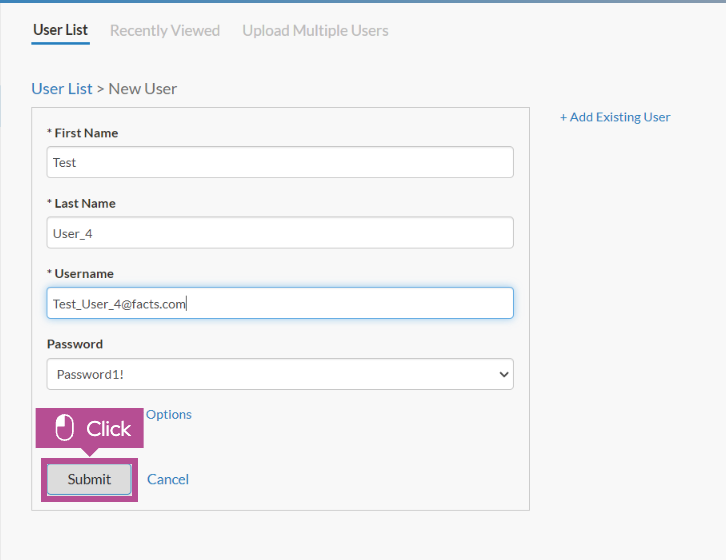
5. Fill out the user information then click Submit.
Note: Must fill out First and Last Name and Username

6. That's it. You're done.

Here's an interactive tutorial
** Best experienced in Full Screen (click the icon in the top right corner before you begin) **
https://www.iorad.com/player/2526376/How-to-Add-a-User-to-a-Group---?iframeHash=trysteps-1
Click on the highlighted boxes or use the arrows to navigate.
Written Guide
1. Open your LMS Site and click the pencil icon in the right hand corner of the top navigation.
2. Click Select Group for the group you would like to add the user(s) to.
3. Click Admin > Users.
4. From the User List Page, click + Add.
5. Fill out the user information then click Submit.
Note: Must fill out First and Last Name and Username.